
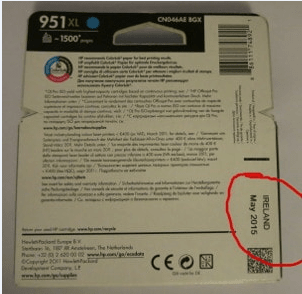

Important Information About HP Ink Cartridge Expiration Dates
Clarification on Expiration Dates
We understand that the expiration date printed on the back of the HP ink cartridge retail box can be confusing. It's important to note that this date is not an indication of when the cartridge must be used by. Instead, it represents the HP warranty expiration date.

What Does This Mean for You?
- Warranty Expiration Date: This date marks the end of the warranty period provided by HP for the ink cartridge. It means that up until this date, HP guarantees the cartridge against defects and will replace it if there are any issues.
- Usage After Expiration Date: The cartridge can still be used after this date. It will not stop working or become unusable immediately after the warranty expiration date. The ink quality remains effective, and you can continue to print with confidence.
Assured Quality
We ensure that all our HP ink cartridges are stored properly and are in optimal condition. Your satisfaction is our priority, and we want you to feel confident in your purchase.
If You Have Questions
If you have any questions or concerns about the HP ink cartridges or their expiration dates, please do not hesitate to contact our customer service team on 1300698246. We are here to help!

To bypass the expiration warning on an ink cartridge and continue using it in an HP printer, follow these steps:
Method 1: Ignore the Expiry Message
- Power On the Printer: Ensure your HP printer is powered on.
- Access the Printer's Control Panel: Use the touchscreen on the printer to navigate.
- Acknowledge the Message: When you see the message indicating the cartridge is expired, look for an option like "OK," "Continue," or "Ignore." Select this option to bypass the warning.
- Resume Printing: Try to print a test page to see if the printer allows you to proceed despite the expiration warning.
Method 2: Check Printer Settings
-
Disable Cartridge Protection:
- On the printer's control panel, go to the "Setup" or "Settings" menu.
- Find the "Tools" or "Preferences" section.
- Look for an option related to "Cartridge Protection" or "Cartridge Expiration."
- Disable or turn off the protection/expiration feature.
-
Software Override:
- Open the HP printer software on your computer.
- Navigate to the "Printer Maintenance" or "Device Services" section.
- Look for options to disable cartridge protection or expiration warnings.
- Save changes and try printing again.
Method 3: Printer Reset
-
Perform a Hard Reset:
- With the printer on, unplug the power cord from the printer and the wall outlet.
- Wait for about 60 seconds.
- Plug the power cord back into the wall outlet and then into the printer.
- Turn the printer back on and try printing again.
3 comments
Suwaidionline
Very useful article on HP ink cartridge expiration dates. The clear explanation helps users understand shelf life, storage tips, and ensures optimal print quality without wasting cartridges.
OZ Toner
That’s a very reasonable question, and we understand why it comes up.
Yes, HP (like most major printer manufacturers) does use electronic chips on ink cartridges. These chips are primarily designed to:
Identify the cartridge model and compatibility
Monitor estimated ink levels
Enable printer communication and alerts
The chip is not related to the warranty expiry date printed on the packaging, and it does not automatically disable a cartridge simply because a warranty date has passed. A warranty expiry date only marks the end of the manufacturer’s warranty coverage — it does not mean the cartridge is expired or unusable.
In our real-world experience, genuine HP ink cartridges that are correctly stored continue to function normally well beyond the warranty date. That is why we confidently guarantee print quality on the clearance items we sell and fully support our customers if any issue arises.
Joyce
Are they still putting chips in there printers, so they can control things,