How to Choose the Perfect A3 Colour Printer for Your Business or Creative Projects
Deciding on an A3 colour printer? This comprehensive guide breaks down the key differences between inkjet and laser models, explains essential features, and helps you calculate true long-term costs. Make the right choice for your needs.

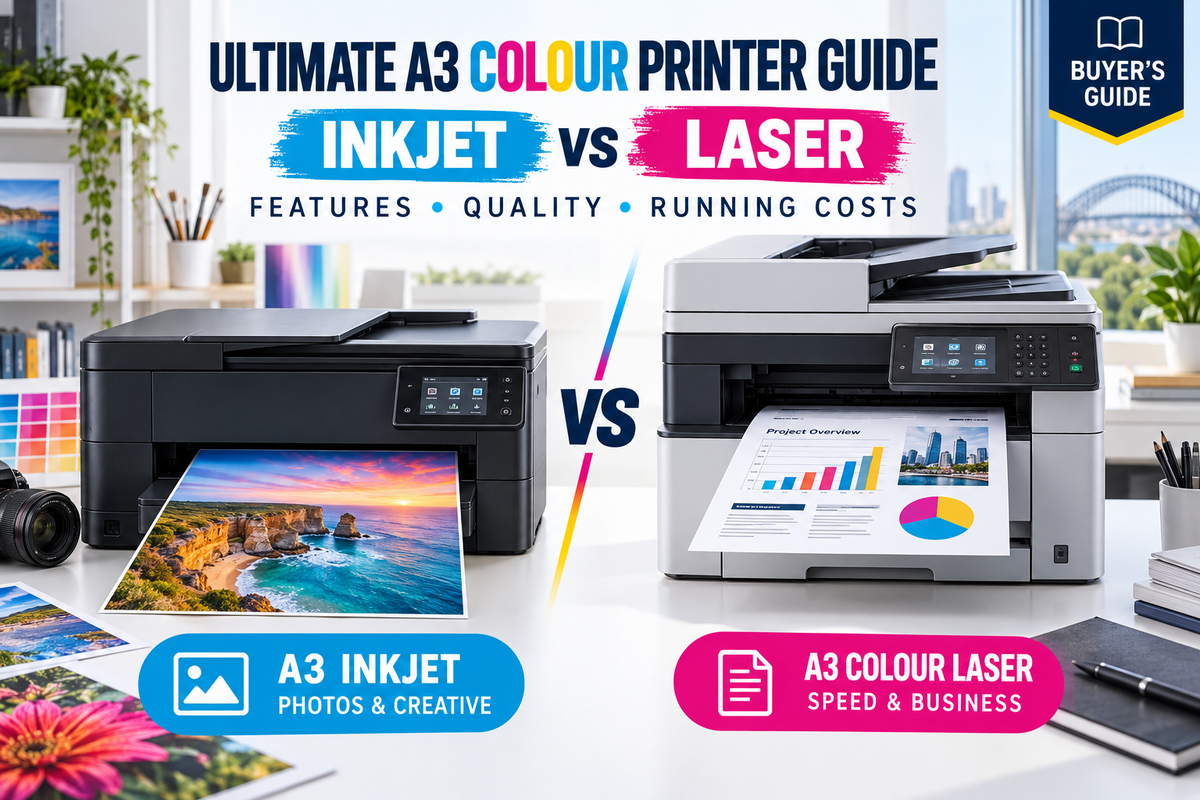
| Feature | A3 Inkjet Printers | A3 Laser Printers |
| Best For | Photographers, artists, graphic designers, small offices with low-to-medium volume, and those needing exceptional color accuracy. | Large offices, high-volume printing, text-heavy documents, and environments where speed is critical. |
| Print Quality | Superior for Photos & Graphics. Excellent for smooth gradients, vibrant colors, and detailed images. Can handle a wide range of paper types, including glossy photo paper and fine art media. | Superior for Text & Documents. Produces sharp, crisp text and clean lines. Good for business graphics and presentations, but may struggle with the nuanced gradients of high-quality photos. |
| Speed | Generally slower, especially for high-quality photo prints. Print speed (PPM) is often lower than a comparable laser model. | Much faster, designed for high-volume, continuous printing. Print speeds are consistently high for both text and basic graphics. |
| Initial Cost | Lower upfront cost, making them a more accessible option. | Higher initial investment. |
| Running Costs | Ink cartridges may have a lower yield, but high-yield cartridges and modern tank systems have made costs very competitive. Ink can dry out if not used regularly. | Toner cartridges have a much higher page yield, leading to a very low cost per page. Ideal for consistent, heavy printing. |
| Size & Footprint | Often more compact and better suited for home offices or studios. | Larger and heavier, typically requiring a dedicated space in an office environment. |

Essential Features to Consider
Beyond the core inkjet vs. laser debate, a printer's true value lies in its features. The right combination of capabilities can streamline your workflow, save you money, and ensure your investment perfectly matches your day-to-day needs. Here’s a deeper dive into the key features you should scrutinize before you buy.
1. Print Resolution (DPI)
Print resolution, measured in dots per inch (DPI), is one of the most critical factors for print quality. This number tells you how many individual dots of ink or toner a printer can place within a single square inch of paper.
-
For Text and Documents: A resolution of 600 x 600 DPI is perfectly adequate for crisp, clear text and basic graphics. Most A3 laser printers excel at this.
-
For Photos and Fine Graphics: If your work involves professional photography, detailed illustrations, or vibrant marketing materials, you'll need a much higher resolution. Look for inkjet printers with resolutions of 1200 x 1200 DPI or higher, with some specialized models reaching 4800 x 2400 DPI to produce gallery-quality prints. A higher DPI is essential for smooth gradients and fine detail that prevents images from looking "pixelated" or grainy.
2. Monthly Duty Cycle & Recommended Volume
Don't be fooled by a high "monthly duty cycle" alone. This is the absolute maximum number of pages a printer can produce in a single month without incurring severe wear and tear. It's a metric for a printer's durability, not a daily target.
The more useful number is the Recommended Monthly Volume (RMV). This is the number of pages the manufacturer suggests you print each month to ensure the printer operates reliably and maintains its longevity.
-
Rule of Thumb: A good RMV is typically about 10% of the maximum duty cycle.
-
Why it Matters: Exceeding the RMV can lead to frequent maintenance issues, premature part failure, and costly repairs. Always choose a printer with an RMV that comfortably exceeds your average monthly printing needs.
3. Connectivity Options
A modern printer is a network device. How it connects to your devices and network is crucial for a seamless workflow.
-
Wi-Fi / Wireless: The most common and convenient option. Wireless connectivity allows you to place the printer anywhere in your office and print from laptops, tablets, and smartphones without a physical cable.
-
Ethernet / Wired Network: A wired connection provides the most stable and secure network connection. It is ideal for office environments where many users will be sharing a single printer.
-
USB: A direct USB connection is best for a single user who will be printing from a dedicated computer.
-
Mobile & Cloud Printing: Look for support for popular protocols like Apple AirPrint, Mopria Print Service, or Google Cloud Print. These features allow you to print directly from your mobile devices or even from a remote location via the cloud.
4. Duplexing (Double-Sided Printing)
Automatic duplexing is the ability of a printer to automatically print on both sides of the paper without manual intervention.
-
Benefits: This feature is a major paper-saver, reducing paper costs by up to 50%. It's also a significant time-saver, especially for printing long documents, and contributes to a more professional, polished look for reports and presentations.
-
Duplex Scanning (for Multifunction Printers): For all-in-one models, a duplexing Automatic Document Feeder (ADF) can scan both sides of a document in a single pass, further boosting efficiency for digitizing files.
5. Multifunctionality (All-in-One)
An A3 multifunction printer (MFP), also known as an all-in-one (AIO), combines multiple functions into a single device.
-
Core Functions: These devices typically include printing, copying, and scanning. Some professional models also include faxing.
-
Benefits: Choosing a multifunction printer saves valuable office space and money by eliminating the need to purchase separate devices. It also centralizes document management, making it easier to handle all your paper-based tasks from one machine.
6. Paper Handling & Media Types
An A3 printer's versatility goes beyond just paper size. How it handles different types of paper is a key consideration, especially for creative work.
-
Paper Trays & Capacity: Check the number of paper trays and their capacity. Multiple trays allow you to load different paper sizes (e.g., A4 and A3) or types (e.g., plain and glossy) simultaneously without needing to swap them out.
-
Manual Feed Tray: A manual feed slot is a crucial feature for printing on specialty media like thick cardstock, envelopes, or custom-sized paper that won't fit in the standard tray.
-
Media Weight: Make sure the printer supports the paper weights you plan to use. This is measured in grams per square meter (gsm). A higher gsm number indicates thicker paper. For professional posters or business cards, you will need a printer that can handle a high gsm.
"Now that you're an expert, browse our full range of A3 colour printers to find the perfect model for your needs.
Still have questions? Our team of experts is ready to help!"
OZ Toner 2026 Office Printer Guide Series
Continue with a More Specific Office Printer Guide
If your A3 requirement is tied to a specific business workflow, these current OZ Toner guides may be more useful than a general A3 comparison:
- Best Printer for Architecture & Engineering Office Australia — A3 plans, markups and technical documents
- Best Printer for Real Estate Office Australia — floor plans and property marketing
- Best Office Printer Australia 2026 — general office printer selection